
Ticket Tiers and Promo Codes
Define ticket tiers with prices, capacity and sales windows, then add percentage or fixed promo codes with usage caps.
These images are illustrations of the concept, not screenshots of the actual product.
Overview
Pricing is where an event's plan meets its audience. Organizers juggle early-bird deadlines, student and VIP tiers, partner discounts and limited-access codes, often across spreadsheets and a separate ticketing tool, and then discover too late that a tier sold out or a code was overused. This concept brings ticket tiers and promo codes into the same event console, so pricing decisions sit right next to the event they belong to.
The first illustration shows a Ticket Types page for a sample conference. Each tier is a card with its name, price, a sold-vs-capacity bar with a running count, a sales window with start and end dates, and an active or inactive toggle. An overflow menu on each card opens Edit and Delete actions, and a New ticket type button sits under the page title. At a glance, an organizer can see which tiers are nearly full, which are still on sale and which have been switched off.
The second illustration turns to promo codes for the same event. A table lists each code with a badge that marks the discount as a percentage or a fixed amount, a usage bar that compares redemptions with the cap, a validity range or an ongoing label, and a status toggle. A Create promo code panel docks on the right with fields for the code, discount type, value, maximum uses, start and end dates and an Active switch, so new codes can be added without leaving the list.
Tiers and codes are designed to feed straight into registration: the ticket options and discounts an organizer defines here are the ones offered when an attendee is signed up, and the resulting sales are meant to roll into the dashboard and analytics. Because every tier and code belongs to a specific event, a team running several events keeps each price list separate while working from one console.
What this concept shows
- Ticket tier cards with name, price and a sold-vs-capacity progress bar
- Sales windows with start and end dates for every tier
- Active and inactive toggles to open or pause sales per tier
- Per-tier overflow menu with Edit and Delete actions
- Promo code table with badges for percentage and fixed-amount discounts
- Usage bars comparing redemptions against each code's cap
- Validity ranges, including codes marked as ongoing
- Side panel for creating a code with type, value, max uses, dates and status
How it works
- Open the event's ticket types and review each tier's price, sales and sales window.
- Select New ticket type to add a tier, or use a card's menu to edit or delete one.
- Toggle a tier active or inactive to open or pause its sales.
- Switch to promo codes to review discount types, usage against caps and validity.
- Select New promo code and fill in the code, discount type, value, max uses and dates in the side panel.
- Leave the code switched to active and create it so it can be applied at registration.
Who it's for
- Event organizers and producers
- Ticketing and revenue managers
- Marketing teams running early-bird and partner offers
- Conference and workshop coordinators
Illustrations
2 illustrations of this concept. Select one to view it full size.
Ticket Types with Capacity and Sales Windows
This illustration shows the Ticket Types page for a sample conference, with Tickets selected in a left navigation that also lists Dashboard, Events, Attendees, Reports and Settings, and an admin profile at the bottom. A New ticket type button sits beneath the page title. Four tier cards follow: Early Bird, General Admission, VIP and Student, each with a sample price in rupees. Every card carries a sold-vs-capacity progress bar with a count, such as a sample 180 of 200 for the early tier, and a sales window with start and end dates. A toggle on the right marks three tiers as active and the student tier as inactive. The first card's overflow menu is open, revealing Edit and Delete. The design lets an organizer judge sell-through and availability for every tier from a single list.
Promo Codes with Usage Caps and a Create Panel
This illustration shows the Promo Codes page for the same sample conference, with Events highlighted in the left navigation. A New promo code button sits above a table with Code, Discount, Usage, Validity and Status columns. Four sample codes appear in a monospaced style. Badges label each discount as a percentage or a fixed amount next to its value, and a slim usage bar with a count shows redemptions against the cap. Validity is a date range, or ongoing for a partner code with no end date. Status toggles mark three codes active and one inactive, and every row has an overflow menu. On the right, a Create promo code panel offers fields for the code, a discount type dropdown, value and maximum uses, start and end date pickers and an Active switch, with Cancel and Create buttons. The layout keeps existing codes in view while a new one is drafted.
Topics
- event ticket tiers
- early bird ticket pricing
- VIP and student tickets
- ticket sales window
- promo code management
- event discount codes
- percentage vs fixed discount
- promo code usage limit
- ticket capacity tracking
- conference ticketing software
Related concepts
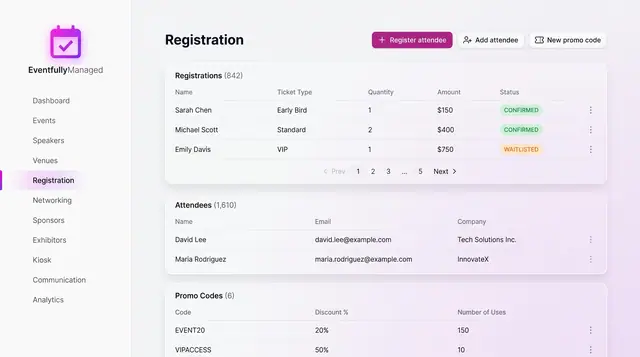
Registration and Attendee Sign-Up
See registrations and attendees in one place, and sign people up through a guided flow with ticket choice, promo codes and a total.
2 illustrations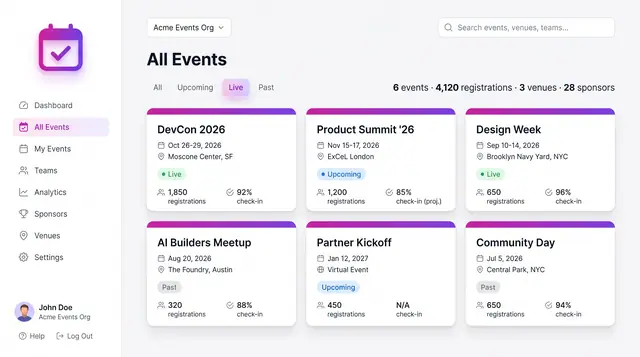
Event Portfolio and Event Setup
From an organization-wide portfolio down to one event's details: browse the calendar, create an event, then work from its overview.
4 illustrations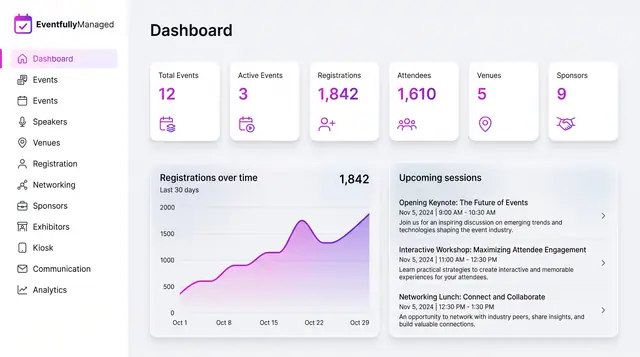
Organizer Dashboard in Light and Dark
One home screen with portfolio totals, a registration trend and the sessions coming next, designed to read the same in light or dark.
2 illustrations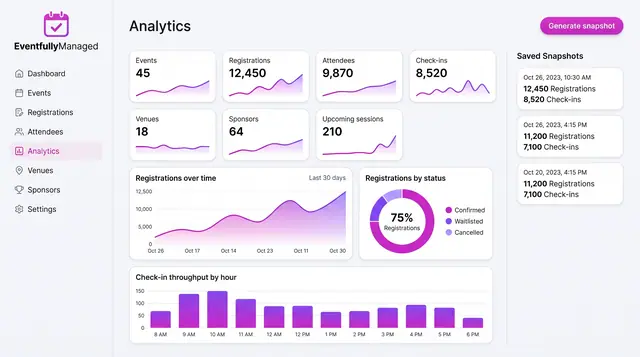
Analytics, Forecasts and Anomaly Watch
Track live event metrics, save point-in-time snapshots, and preview how forecasts and check-in alerts could build on them.
3 illustrations