
Registration and Attendee Sign-Up
See registrations and attendees in one place, and sign people up through a guided flow with ticket choice, promo codes and a total.
These images are illustrations of the concept, not screenshots of the actual product.
Overview
Registration is the heart of the event funnel, and it is where disconnected tools cost the most. When sign-ups live in a ticketing app, attendee details in a spreadsheet and discount codes somewhere else, teams spend the run-up to an event reconciling lists instead of preparing for the people on them. This concept keeps registrations, attendees and promo codes together and gives staff a clear way to register someone on the spot.
The first illustration shows a Registration page reached from the main organizer navigation. Three stacked cards summarize the funnel. A Registrations list shows each sign-up with its ticket type, quantity, amount and a status badge that distinguishes confirmed registrations from waitlisted ones, with pagination for longer lists. An Attendees list shows names, email addresses and companies, and a Promo Codes list shows each code with its discount and number of uses. Header actions offer Register attendee, Add attendee and New promo code.
The second illustration opens the Register Attendee flow. A four-step progress line runs through Event, Ticket, Attendee and Confirm. An Attendee Information card combines an event selector, ticket type tiles that show each tier's price, fields for full name, email and company, a quantity stepper and an optional promo code field with an Apply button that confirms the discount once it is accepted. Beside it, an Order Summary lists the chosen ticket, the promo deduction and the total above a Confirm registration button.
The concept is designed so that the person registered here is the same record that later checks in at the door, books networking meetings and appears in analytics, with no re-keying between steps. The ticket tiers and promo codes defined elsewhere in the console are meant to be exactly what this flow offers, which keeps pricing and sign-up consistent.
What this concept shows
- Registrations list with ticket type, quantity, amount and status
- Confirmed and waitlisted status badges on each registration
- Attendee directory with name, email and company
- Promo code summary with discount and number of uses
- Header actions to register an attendee, add an attendee or create a promo code
- Four-step sign-up flow covering event, ticket, attendee and confirmation
- Priced ticket type tiles and a quantity stepper
- Promo code field with an applied-discount confirmation and a running order summary
How it works
- Open Registration to review recent registrations, attendees and promo codes.
- Select Register attendee to start the guided flow.
- Choose the event and pick a ticket type from the priced tiles.
- Enter the attendee's name, email and company and set the quantity.
- Apply a promo code and check the discount and total in the order summary.
- Select Confirm registration to add the attendee to the event.
Who it's for
- Registration desk and front-of-house staff
- Event organizers
- Attendee services and support teams
- Ticketing managers
Illustrations
2 illustrations of this concept. Select one to view it full size.
Registration Overview with Attendees and Promo Codes
This illustration shows the Registration page with the full organizer navigation on the left, including Dashboard, Events, Speakers, Venues, Registration, Networking, Sponsors, Exhibitors, Kiosk, Communication and Analytics, with Registration selected. Three header buttons offer Register attendee as the primary action, plus Add attendee and New promo code. The first card lists registrations with a total count and columns for name, ticket type, quantity, amount and status; sample rows show confirmed and waitlisted badges, and a pager moves between pages. A second card lists attendees by name, email and company, and a third lists promo codes with a discount percentage and number of uses. Each row ends with an overflow menu. The design gives registration staff one place to see who has signed up and on what terms.
Register Attendee Flow with Order Summary
This illustration shows the Register Attendee screen, with Attendees selected in the left navigation. A four-step progress line across the top reads Event, Ticket, Attendee and Confirm, with the first step checked off and the Attendee step current. The Attendee Information card holds an event dropdown set to a sample conference and three ticket type tiles, general, VIP and student, each with a sample price and the general tile selected. Below are fields for full name, email and company, a quantity stepper with minus and plus controls, and an optional promo code field with an Apply button; a green chip confirms that a ten percent discount has been applied. On the right, an Order Summary lists the ticket, the promo code deduction and the total, and a Confirm registration button completes the flow.
Topics
- event registration software
- attendee registration
- register attendees manually
- event sign-up form
- event waitlist management
- attendee list management
- apply promo code at checkout
- event order summary
- conference registration desk
- ticket purchase flow
Related concepts
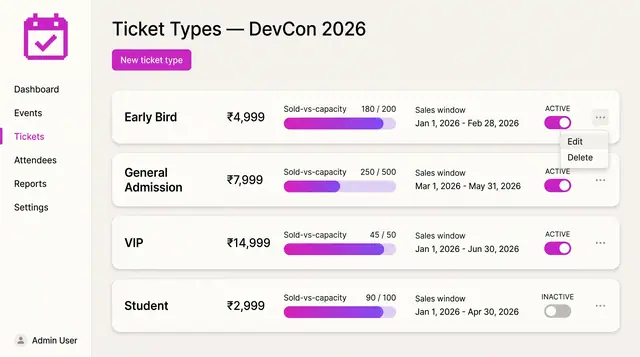
Ticket Tiers and Promo Codes
Define ticket tiers with prices, capacity and sales windows, then add percentage or fixed promo codes with usage caps.
2 illustrations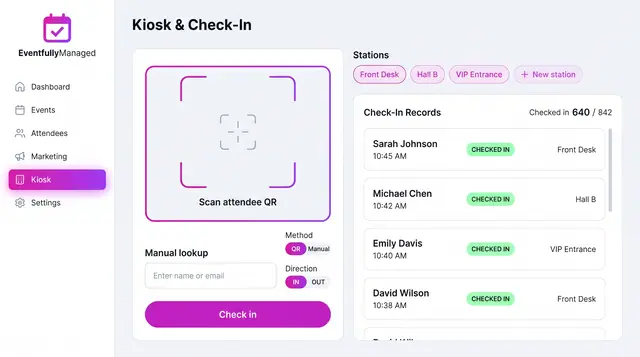
QR Check-In Kiosk
Scan attendee QR codes or look people up by name across named stations, with a live feed of check-ins against registrations.
1 illustration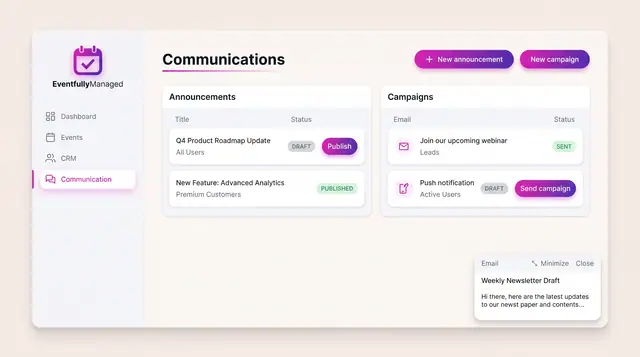
Announcements and Campaigns
Draft and publish announcements to chosen audiences and send email or push campaigns, with clear draft, published and sent states.
1 illustration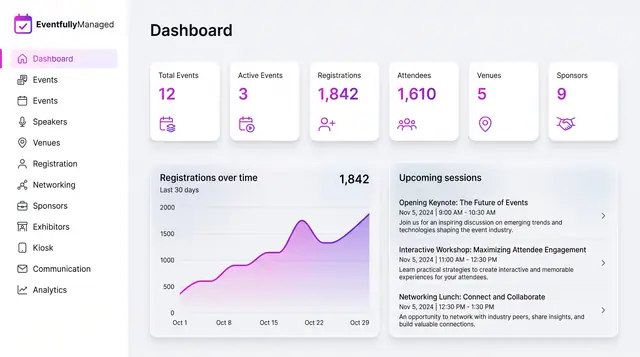
Organizer Dashboard in Light and Dark
One home screen with portfolio totals, a registration trend and the sessions coming next, designed to read the same in light or dark.
2 illustrations