
QR Check-In Kiosk
Scan attendee QR codes or look people up by name across named stations, with a live feed of check-ins against registrations.
These images are illustrations of the concept, not screenshots of the actual product.
Overview
The check-in line is the first impression of an event and the place where disconnected tools are most visible: a stale badge list, a scanner that cannot find a name, a queue out the door. This concept imagines a single Kiosk & Check-In screen where staff scan attendees in, look them up by hand when needed and watch arrivals build in real time.
The illustration splits the screen into two working areas. On the left, a large framed scan area invites staff to scan the attendee's QR code. Below it, a manual lookup field accepts a name or email, a Method toggle switches between QR and manual entry, and a Direction toggle records whether someone is coming in or going out. A prominent Check in button completes the action.
On the right, a Stations row lists the named check-in points for the event, such as a front desk, a hall and a VIP entrance, with a New station control to add more. Beneath it, a Check-In Records list shows each arrival with the attendee's name, the time, a checked-in badge and the station that recorded it, while a counter compares checked-in attendees with total registrations. Because the direction toggle is designed to record exits as well as entries, the concept can reflect who is inside an area, not just who arrived.
Check-in is designed to read the same registration and attendee records the rest of EventfullyManaged writes, so someone who registered an hour earlier can be scanned cleanly and each check-in can flow onto the organizer dashboard and analytics as it happens. Setting up several stations lets a large venue spread arrivals across entrances while keeping one shared record of attendance.
What this concept shows
- Large QR scan area for fast attendee check-in
- Manual lookup by name or email as a fallback
- Method toggle between QR and manual check-in
- Direction toggle for recording entries and exits
- Named stations such as a front desk, a hall and a VIP entrance, with a control to add more
- Live check-in records with name, time, status badge and station
- Running counter of checked-in attendees against total registrations
How it works
- Open Kiosk and select the station this device is serving, or add a new one.
- Choose the QR or manual method and set the direction to in or out.
- Scan the attendee's QR code, or type a name or email into manual lookup.
- Select Check in to record the arrival.
- Watch the record appear in the check-in list with its time and station as the counter updates.
Who it's for
- On-site operations and front-of-house staff
- Volunteers staffing event entrances
- Venue and security coordinators
- Event organizers monitoring arrivals
Illustrations
1 illustration of this concept. Select one to view it full size.
Kiosk and Check-In with Stations and Live Records
This illustration shows the Kiosk & Check-In screen with Kiosk highlighted in a left navigation that also lists Dashboard, Events, Attendees, Marketing and Settings. The left card is dominated by a framed scan area with corner brackets and a viewfinder icon above the label Scan attendee QR. Beneath it sit a manual lookup field for a name or email, a Method toggle with QR selected over manual, a Direction toggle with IN selected over OUT, and a wide Check in button. On the right, a Stations row shows chips for a front desk, a hall and a VIP entrance, with the front desk highlighted and a New station chip beside them. The Check-In Records card shows a sample count of attendees checked in against registrations and a scrolling list of arrivals, each with a name, time, a green checked-in badge and the station used.
Topics
- QR code event check-in
- event check-in kiosk
- attendee check-in app
- multi-station check-in
- manual attendee lookup
- check-in and check-out tracking
- VIP entrance check-in
- live attendance count
- on-site registration desk
- conference badge scanning
Related concepts
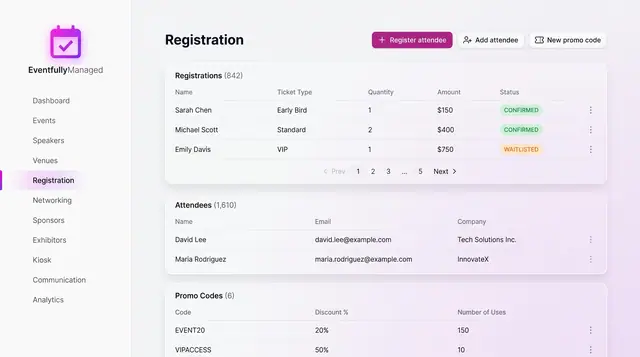
Registration and Attendee Sign-Up
See registrations and attendees in one place, and sign people up through a guided flow with ticket choice, promo codes and a total.
2 illustrations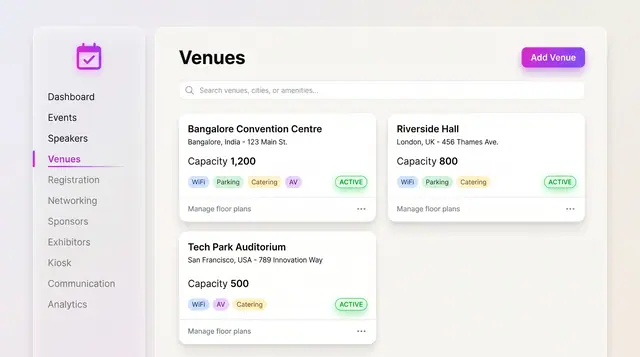
Venues and Floor Plans
Keep venues, capacities and amenities as records, then lay out stages, seating, booths and the registration desk on the plan.
2 illustrations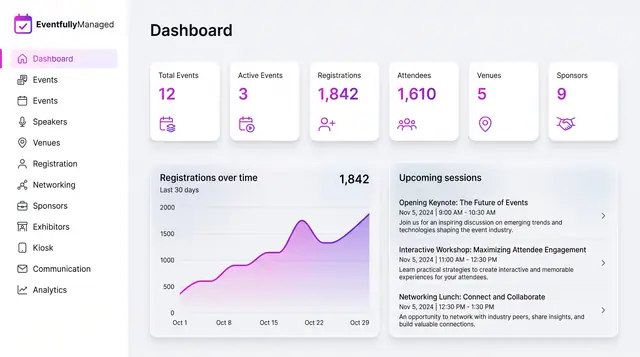
Organizer Dashboard in Light and Dark
One home screen with portfolio totals, a registration trend and the sessions coming next, designed to read the same in light or dark.
2 illustrations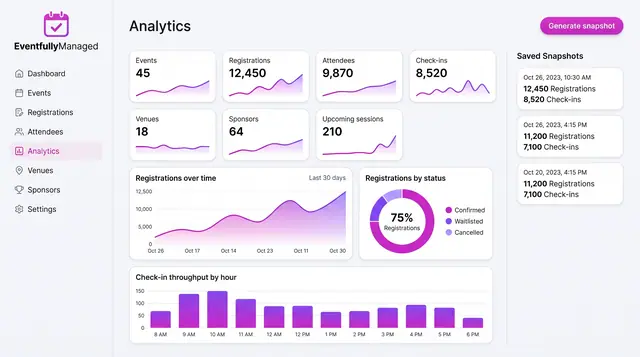
Analytics, Forecasts and Anomaly Watch
Track live event metrics, save point-in-time snapshots, and preview how forecasts and check-in alerts could build on them.
3 illustrations