
Event Portfolio and Event Setup
From an organization-wide portfolio down to one event's details: browse the calendar, create an event, then work from its overview.
These images are illustrations of the concept, not screenshots of the actual product.
Overview
This concept covers the spine of the product: the event record itself. It moves from the widest view - every event an organization is running - to a list the team works from day to day, to the form that creates a new event, to the detail page that becomes that event's home.
Teams that run more than one event usually lose the thread between them. Each event ends up with its own spreadsheet and its own definition of how many people registered, and nobody can answer a simple portfolio question without a manual roll-up. The illustrated design treats events as records in one place, so a portfolio summary, a working list and a single event's detail are three views of the same data rather than three separate systems.
The portfolio view opens on an organization switcher and a search field spanning events, venues and teams. Filter tabs separate all events from upcoming, live and past ones, and a summary line totals the events, registrations, venues and sponsors in view. Each event is a card with its dates, its location or a virtual marker, a status pill and two figures - registrations and a check-in rate, which one card shows as a projection and another as not yet applicable for a future date.
The working list restates the same events as a searchable table with columns for the event, its dates, its venue, a status pill and an attendee count, plus a row menu and pagination. A prominent create action opens a single form: name, start and end date and time, venue, description, capacity, an event-type toggle for in-person, virtual or hybrid, and a status that lets the event be saved as a draft before anyone sees it.
Once saved, the event detail page carries the title, the date range and venue, a status pill and an edit action, with tabs for the overview, sessions, speakers and tickets. The overview tab sets a details card - dates, venue, capacity, type and description - next to a key metrics card showing registrations, sessions, speakers and tickets sold, which is the jumping-off point for the agenda, ticketing and check-in concepts. All names and figures shown are sample data.
What this concept shows
- An organization switcher and a search field covering events, venues and teams
- Filter tabs for all, upcoming, live and past events, with a summary line totaling events, registrations, venues and sponsors
- Event cards showing dates, location or a virtual marker, a status pill, registrations and a check-in rate - including a projected rate and a not-applicable state
- A searchable events table with columns for event, date, venue, status and attendees, plus a per-row menu and pagination
- Status pills that separate draft, published and live events at a glance
- A create-event form with start and end date-times, venue picker, capacity, description and a status that allows saving as a draft
- A segmented control for choosing an in-person, virtual or hybrid event
- An event detail page with overview, sessions, speakers and tickets tabs, and a key-metrics card for registrations, sessions, speakers and tickets sold
How it works
- Open the portfolio view and pick the organization whose calendar you want to see.
- Filter to live, upcoming or past events, and read the summary line for the totals behind the cards on screen.
- Switch to the working events list to search the same events as a table, with their dates, venues, status and attendee counts.
- Choose the create action and fill in the form: name, start and end date and time, venue, description, capacity and event type.
- Save the event as a draft so the team can keep building before it is visible, then publish when it is ready.
- Open the event to its overview tab and check the details card against the key metrics card.
- Move into the sessions, speakers or tickets tabs to build out the rest of the event.
Who it's for
- Event organizers and program managers
- Event-management agencies running a portfolio of client events
- Operations teams coordinating a recurring event calendar
- Leaders who need a roll-up across every event at once
Illustrations
4 illustrations of this concept. Select one to view it full size.
Organization Portfolio of All Events
A desktop view whose sidebar carries a large logo above navigation for the dashboard, all events, my events, teams, analytics, sponsors, venues and settings, with a user card at the foot showing an avatar, a sample name and organization plus help and log-out links. Along the top sit an organization switcher and a search field for events, venues and teams. The heading is followed by filter tabs for all, upcoming, live and past, with the live tab selected, and a summary line counting the events, registrations, venues and sponsors in view. Six cards fill a grid, each with a gradient top edge, the event name, a dated line, a location line or a virtual-event marker, a status pill, and two figures for registrations and check-in rate - one shown as a projection, another as not applicable.
Events List with Status and Attendee Counts
A light console with the sidebar navigation on the left and the events item active. The main column places a page heading opposite a prominent create-event button, with a pointer resting on it, and a full-width search field beneath. A table follows with column headers for the event, its date, its venue, its status and its attendee count. Each of the four rows sits on its own rounded card and carries the event name, a date range, a venue or an online-event marker, a colored status pill reading published, draft or live, an attendee figure and a trailing menu button. Pagination controls for first, previous and next sit at the lower right. Event names, venues and counts are sample data.
Create Event Form
A centered white card on a plain background, titled for creating an event and introduced by a line about filling in the details to plan and schedule it. The fields run in a clear order: a single-line event name; start and end date-time pickers side by side, each with a calendar icon and a stepper; a venue dropdown; then a two-column row pairing a description text area, which shows its placeholder rather than content, with a numeric capacity field. Below, an event-type segmented control offers in-person, virtual and hybrid with hybrid selected, next to a status dropdown set to draft. A gradient save button and an outlined cancel button close the card. The sidebar navigation remains visible at the left.
Event Detail - Overview Tab
The event page opens with a large event title, a subline combining the date range and venue, a published status pill and an outlined edit-event button. A tab row underneath offers overview, sessions, speakers and tickets, with overview selected and underlined. The body places two cards side by side. The wider details card lists labeled rows for dates, venue with city and country, capacity in attendees, type marked as hybrid covering in-person and virtual, and a multi-line description of the event. The narrower metrics card stacks four figures with their labels: registrations, sessions, speakers and tickets sold. The sidebar navigation stays fixed at the left. All names, descriptions and numbers are sample data.
Topics
- event portfolio management
- create an event
- events list
- multi-event organization
- event status draft published live
- hybrid event setup
- event capacity planning
- event detail overview
- event calendar management
- registration and check-in rate
Related concepts
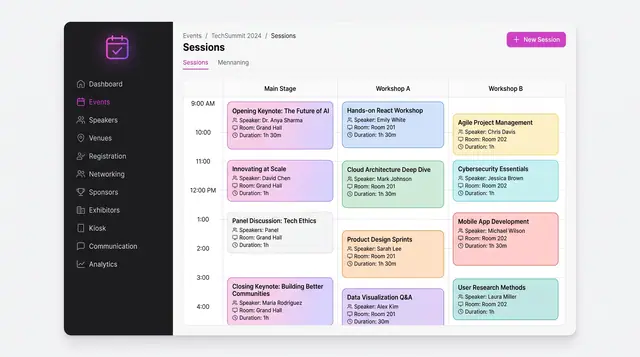
Agenda, Sessions and Speakers
A multi-track schedule grid, conflict checks raised while a session is being written, and a speaker roster that feeds both.
3 illustrations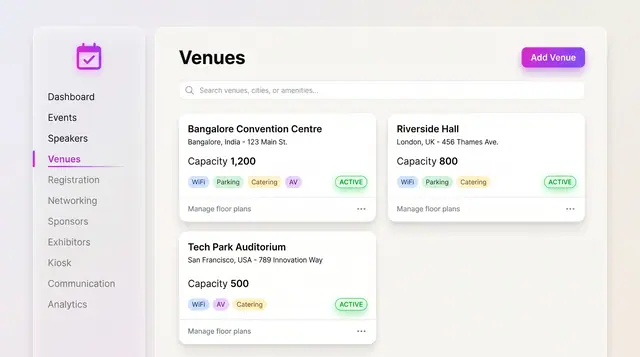
Venues and Floor Plans
Keep venues, capacities and amenities as records, then lay out stages, seating, booths and the registration desk on the plan.
2 illustrations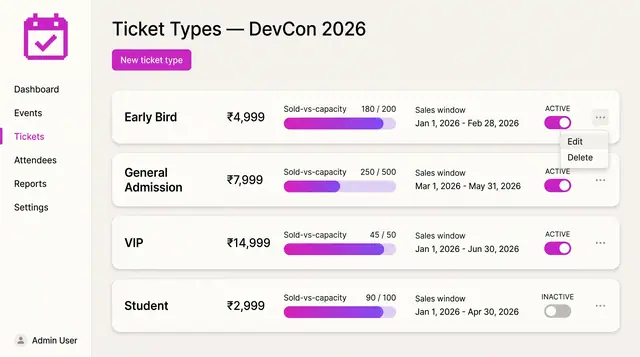
Ticket Tiers and Promo Codes
Define ticket tiers with prices, capacity and sales windows, then add percentage or fixed promo codes with usage caps.
2 illustrations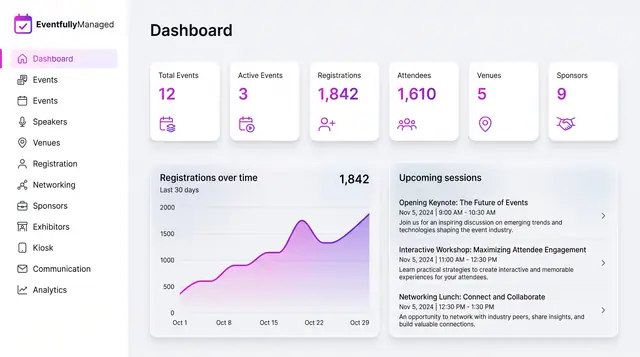
Organizer Dashboard in Light and Dark
One home screen with portfolio totals, a registration trend and the sessions coming next, designed to read the same in light or dark.
2 illustrations