
Networking and Attendee Matchmaking
Attendees opt into profiles, the concept suggests scored matches with reasons, and people book meetings and chat in a shared lounge.
These images are illustrations of the concept, not screenshots of the actual product.
Overview
Many attendees come to an event as much for the people as for the sessions, yet most leave having met only whoever sat nearby. Organizers want to help, but manual introductions do not scale past a few dozen people. This concept turns networking into a structured part of the event: attendees opt in with a profile, the platform suggests who they should meet, and meetings are booked into real times and places.
The first illustration shows a Networking page in the light theme, with three columns and a side panel. Networking Profiles lists attendee cards with a photo, role, company and interest tags, each with a Book meeting button. Suggested Matches pairs two attendees with a match percentage, their shared interests and a Connect & Chat button. Meetings lists booked time slots with the other person and a location, which can be a lounge table, an exhibition hall booth or a virtual meeting room. A Networking Lounge panel on the right carries a public chat with reactions and a message composer.
The second illustration shows the organizer's side of the same idea in the dark theme. Its subtitle sums up the model: profiles opt in, the engine suggests and attendees book. An event selector sits beside a Generate matches button, and a notice confirms how many suggested connections were created. Profiles carry a public or private visibility badge and a line on interests, goals or industry. Suggested matches show a numeric score, a status such as suggested or accepted, and the reasons behind each pairing, including shared interests, complementary fit and same industry, with a Book meeting link. A Meetings panel tracks confirmed and requested meetings, and a networking lounge below keeps the conversation going.
Networking draws on the same attendee records used for registration and check-in, so profiles reflect who is actually attending. Showing why two people were matched is designed to make suggestions easier to trust, and letting attendees choose public or private visibility keeps participation under their control.
What this concept shows
- Opt-in networking profiles with role, company and interest tags
- Public and private visibility on each profile
- Suggested matches with a score and the reasons behind each pairing
- Generate matches action scoped to a selected event
- Book meeting and Connect & Chat actions from profiles and matches
- Meetings list with times, locations and confirmed or requested status
- Networking lounge chat with reactions and a message composer
- Light and dark theme versions of the networking experience
How it works
- Attendees opt in by creating a networking profile with their role, interests and goals.
- The organizer selects the event and runs Generate matches.
- Review suggested matches with their scores and the reasons each pair was matched.
- Book a meeting, or connect and chat, from a match or a profile.
- Track meetings as they move from requested to confirmed, with a time and location.
- Continue conversations in the networking lounge.
Who it's for
- Attendees looking to meet peers, partners or hires
- Community and engagement managers
- Conference organizers
- Sponsors and exhibitors seeking introductions
Illustrations
2 illustrations of this concept. Select one to view it full size.
Networking Profiles, Matches, Meetings and Lounge
This illustration shows the Networking page in the light theme, with Networking selected in a left navigation that also lists Dashboard, Attendees, Schedule, Analytics and Settings. The Networking Profiles column holds attendee cards with a photo, name, role and company, interest tags such as AI/ML, SaaS growth and UX design, and a Book meeting button. The Suggested Matches column pairs two attendees around a heart-marked match percentage, lists their shared interests as tags and offers a Connect & Chat button. The Meetings column shows time slots, each naming the other attendee and a location, with sample places ranging from a lounge table to a virtual meeting room and an exhibition hall booth. A Networking Lounge panel on the right shows a public chat with a participant count, timestamped messages, emoji reactions and a composer with a Send button.
Match Generation with Scores and Reasons in Dark Theme
This illustration shows the organizer console in the dark theme, with an organization switcher, a search bar for events, attendees and venues, a notification bell and an avatar across the top, and a full navigation on the left with Networking selected. Under the Networking title, a subtitle explains that profiles opt in, the engine suggests and attendees book. An event dropdown sits beside a Generate matches button, and a dismissible notice confirms a sample number of suggested connections. Three panels follow. Profiles shows attendees with role, company, a public or private badge and a line on interests, goals or industry. Suggested matches shows numeric scores, suggested or accepted status and reasons such as shared interests, complementary fit and same industry, with a Book meeting link. Meetings lists pairs with a day, time and place, marked confirmed or requested. A networking lounge with a message field spans the bottom.
Topics
- event networking app
- attendee matchmaking
- event matchmaking engine
- conference meeting scheduler
- book one-on-one meetings at events
- networking profiles
- attendee match score
- event networking lounge
- attendee chat
- B2B event matchmaking
Related concepts
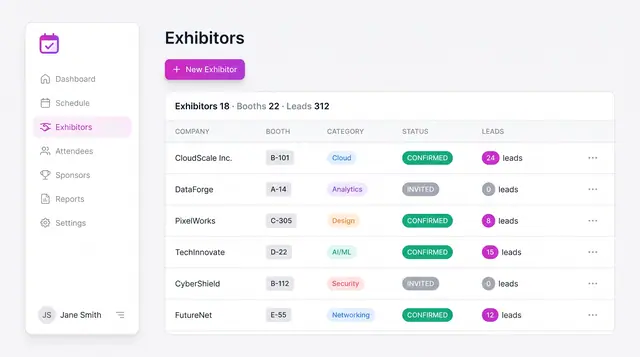
Exhibitor Booths and Sponsor Leads
Track exhibitors by booth, category and status, and manage sponsors by tier with contract value and progress toward lead targets.
2 illustrations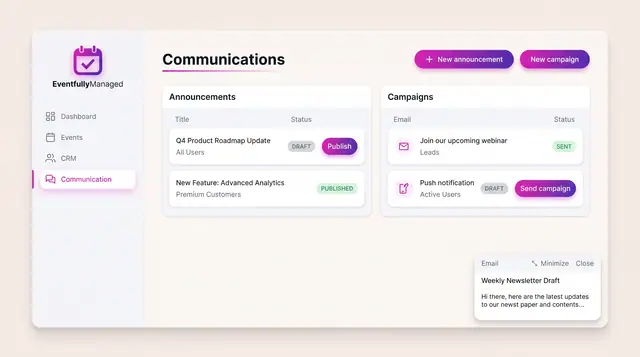
Announcements and Campaigns
Draft and publish announcements to chosen audiences and send email or push campaigns, with clear draft, published and sent states.
1 illustration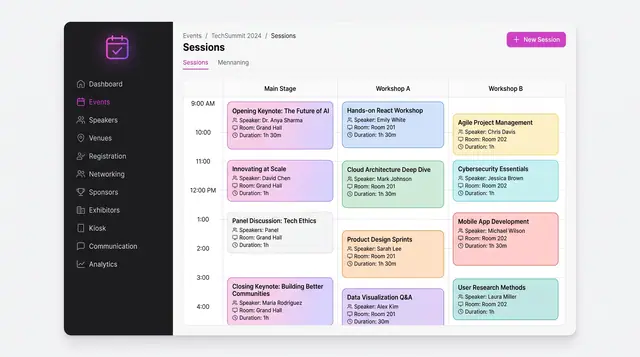
Agenda, Sessions and Speakers
A multi-track schedule grid, conflict checks raised while a session is being written, and a speaker roster that feeds both.
3 illustrations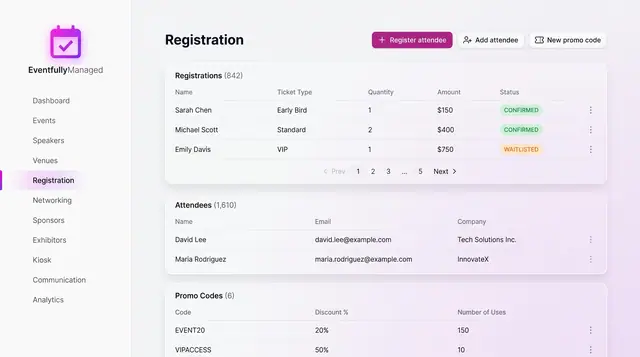
Registration and Attendee Sign-Up
See registrations and attendees in one place, and sign people up through a guided flow with ticket choice, promo codes and a total.
2 illustrations